260413
260413

260413

Ramp의 AX (회사를 AI로 물들이는 법)

Backlinks (0)

No backlinks found.

Debian Setup
Debian Setup

Debian Setup

sudo apt update && sudo apt install git && /bin/bash -c "$(curl -fsSL https://raw.githubusercontent.com/Homebrew/install/HEAD/install.sh)" && echo >> ~/.bashrc && echo 'eval "$(/home/linuxbrew/.linuxbrew/bin/brew shellenv bash)"' >> ~/.bashrc && eval "$(/home/linuxbrew/.linuxbrew/bin/brew shellenv bash)" && sudo apt-get install build-essential && brew install gcc btop
Backlinks (1)
  • 260415
Stella
Stella

Stella

OpenClaw, Hermes, Poke를 쓰며 느낀 단점들

내가 만약 워크스페이스 에이전트를 만든다면 어떻게 만들까?

메모리

  • 육하원칙에 맞게 기억해야하는데, 이걸 잘 못 함
    • 맥락을 종종 헷갈려함
  • 메모리 툴을 명시적으로 불러야 함
    • 이는 Hermes에서 많이 완화된 부분

Slack

  • 답장을 매번 하려 함. 쓰레드에 달리는 모든 글에 답을 함.
    • 매번 답할 필요는 없음. 필요할 때만 하면 됨.
  • 언급하지 않은 메시지는 읽지 않음.
    • 모든 워크스페이스의 변화를 계속 보고 있어야 함, 그리고 기억해야 함
Backlinks (2)
  • 260419
  • 260411
Locking your Mac with Command+L

Locking your Mac with Command+L

191109

The only thing I missed about my Windows computer was locking the screen since I was so used to locking my computer with ⊞Win+L. Mac offered an alternative called the Hot Corner. But it never was so intuitive and fast as pressing ⊞Win+L. However, Mac now supports locking the computer by pressing ⌘Command+L from macOS Mojave.
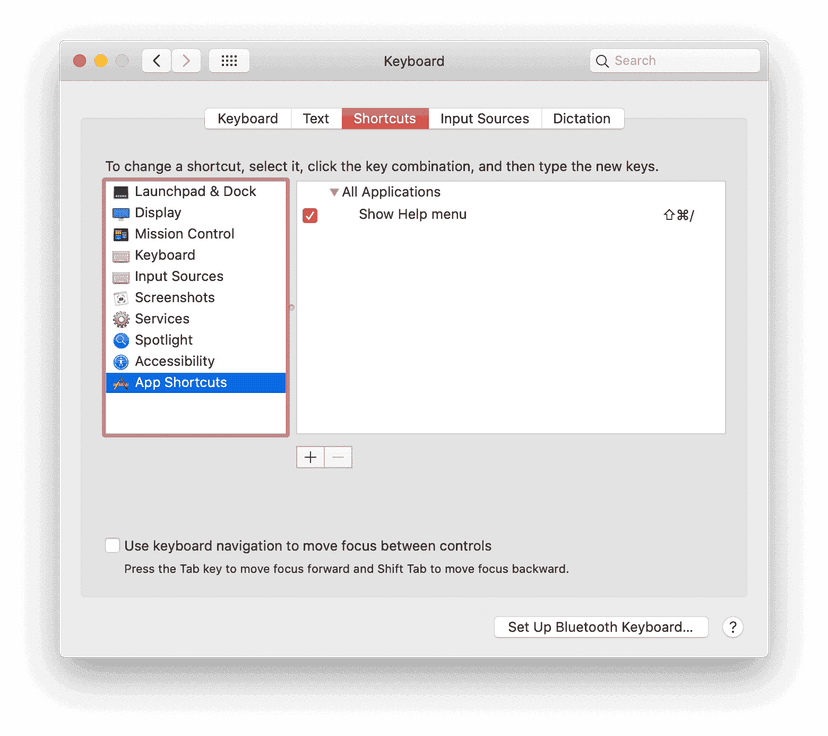
How do I do it?

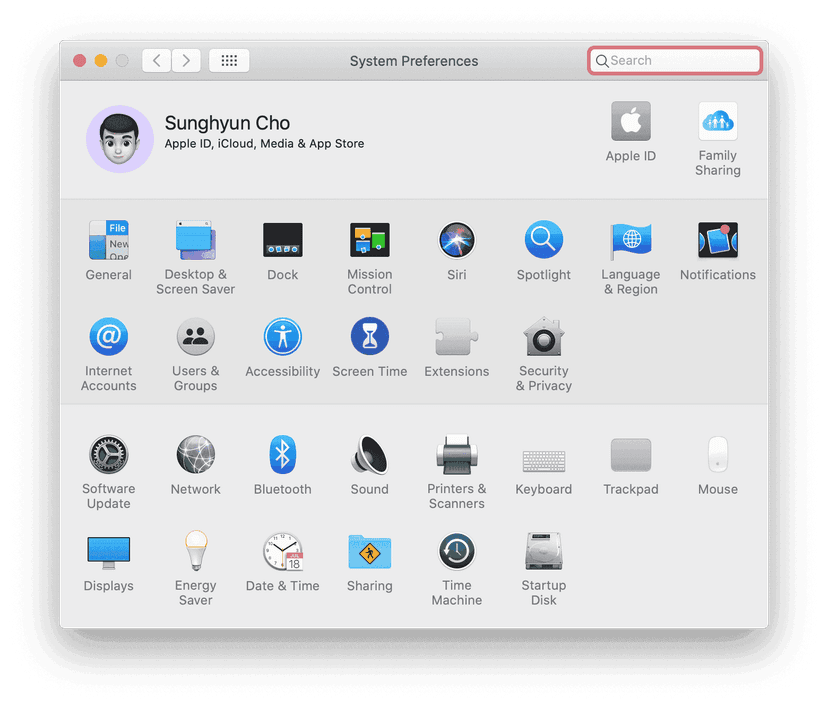
  1. Go to System Preferences.
Go to System Preferences.
  1. Go to Keyboard → Shortcuts → App Shortcuts and press + at the bottom.
Keyboard → Shortcuts → App Shortcuts
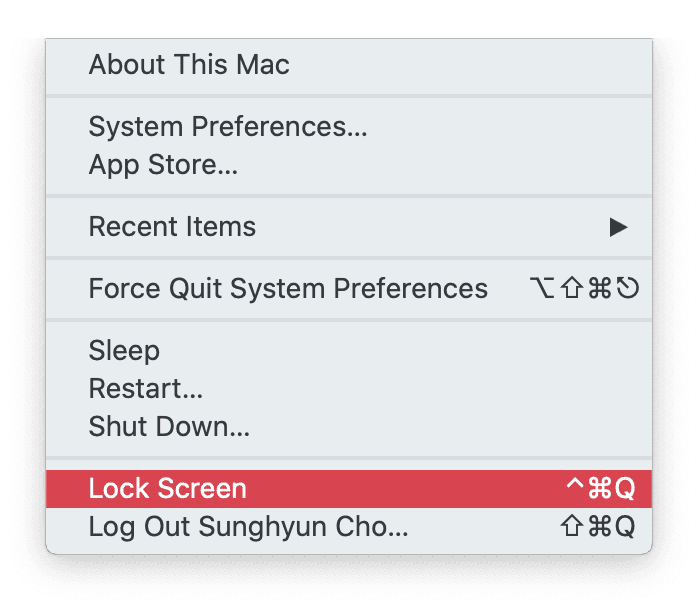
  1. On your Menu Bar, press the  Apple Logo. Check the name of ^Control+⌘Command+Q. It is responsible for locking your Mac. Remember the name of the menu.
Menu Bar
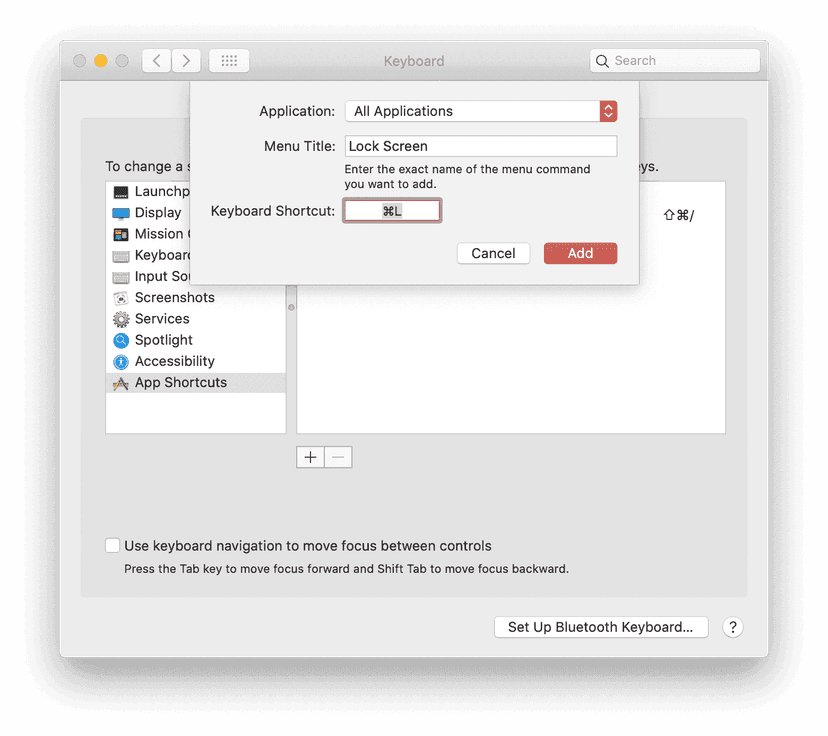
  1. Go back to the Preference app. Select All Applications at Application Setting. Next, enter the Menu Title you have just checked. This title will vary according to your macOS Language Preference. Finally, enter ⌘Command+L at Keyboard Shortcut. You can enter it here if you want to lock your Mac with Keyboard Shortcut other than ⌘Command+L. Press Add if you are finished.
All Applications
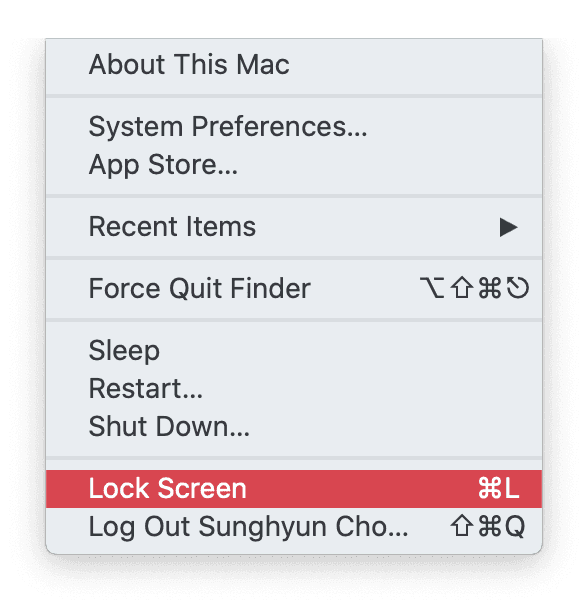
  1. Now you can see that the same Lock Screen option at your menu bar will show the Keyboard Shortcut you just changed.
Menu Bar After

This method works in almost every case. Sometimes, the app will have ⌘Command+L as its Keyboard Shortcut. One example is the System Preferences app that uses the ⌘Command+L as going to the Lobby of System Preferences. I have never seen any other cases where ⌘Command+L doesn't work as expected.
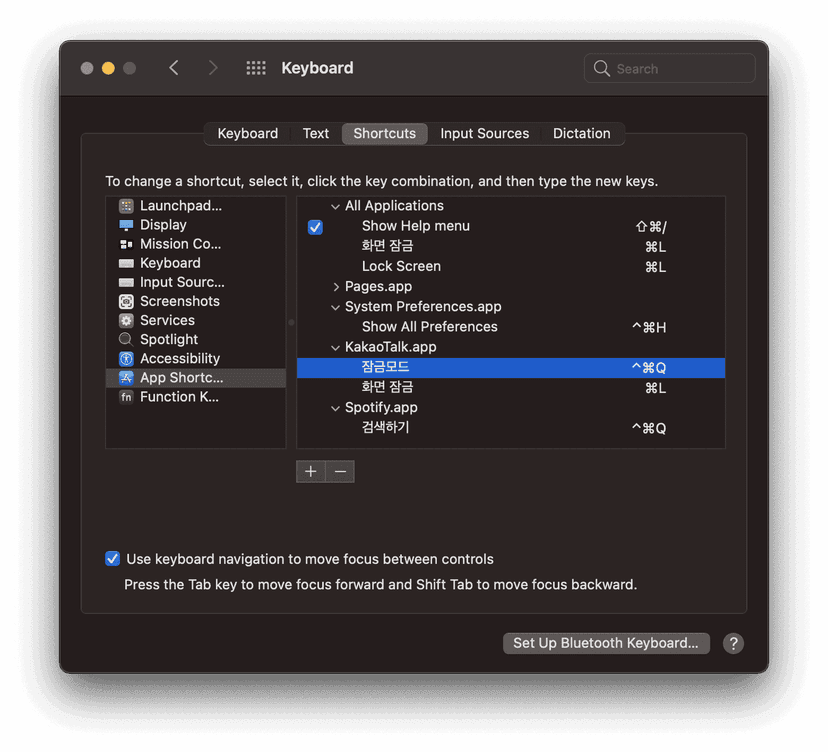
  • If some app uses ⌘Command+L as their default shortcuts, you can set them to some other random shortcuts, clearing the path for the Lock Screen shortcut.
Shortcuts Setting
  • You can now click the Touch ID button from macOS Big Sur to lock your Mac.
Backlinks (2)
  • 221119
  • Mac을 Command+L로 잠그는 방법
Index
cho.sh
I prefer CLIBB9A08260619260619컴퓨트로늄37A88F컴퓨트로늄0CF03F컴퓨트로늄2C60FB260618260618260418260418260528260528AutoBuilder63849A260419260419Setup9AC296StellaD226F7260415260415Debian SetupD2F701260414260414anaclumos/configs/AGENTS.mdED86A3Ramp의 AX (회사를 AI로 물들이는 법)840774260413260413How to get your company AI pilled46544C260411260411260409260409260407260407260406260406Separating Claude Code Personal Sub and Claude Code Company Sub33A53C
sudo apt update && sudo apt install git && /bin/bash -c "$(curl -fsSL https://raw.githubusercontent.com/Homebrew/install/HEAD/install.sh)" && echo >> ~/.bashrc && echo 'eval "$(/home/linuxbrew/.linuxbrew/bin/brew shellenv bash)"' >> ~/.bashrc && eval "$(/home/linuxbrew/.linuxbrew/bin/brew shellenv bash)" && sudo apt-get install build-essential && brew install gcc btop
Warning
This post is more than a year old. Information may be outdated.