260418
- AutoBuilder
- @github@anaclumos@rsc-swr
Backlinks (0)
No backlinks found.
 cho.sh260418
No backlinks found.
I prefer CLIWhy? Multi-tenant environments. First, we need to understand a few differences between environments:
So
Most people physically separate their tenancy, such as Claude Code, from their personal vs. work laptops. So in most cases, it's not a big deal.
But when you need multi-tenancy, it becomes super stressful. For example, say you have two different toolkits:
Most MCP auth states or code harnesses don't support profiles, so you can only log in to one.
So therefore... a natural evolution was to have both:
to physically isolate tenancies.
Now we've solved the multiple-profile issue, but the client's problems persist. Now let's get back to the environments:
All MCP auth or toolkit auth info should always be saved in the Agent Runtime Environment IMHO. However, a surprising number of harnesses tie them to the LLM server (such as Codex Apps or Claude.ai Plugins) or put them in the end-user UI (Claude Desktop or Codex Desktop).
Now the problem is:
The only way to reliably isolate different auth information is thus:
Then
are both isolated VPS, and
This way, you can provide different toolkits, creating multiple dev environments.
Mac을 Command+L로 잠그는 방법Mac을 사용하면서 유일하게 잘 적응이 되지 않은 부분이 바로 화면 잠금이다. 과거 Windows를 사용하면서 ⊞ Win+L키로 화면을 잠구는 것이 습관이 되었기 때문이다. Mac에도 핫 코너라는 기능이 있었지만 ⊞ Win+L처럼 직관적이고 빠르지 못했다. 하지만 macOS Mojave부터 Mac에서도 동일하게 ⌘ Command+L을 사용하여 화면을 잠글 수 있다.
이 방법은 macOS를 한글로 사용하는 경우에만 동작한다. macOS를 영문으로 사용하는 경우 아래 글대로 설정하면 된다.
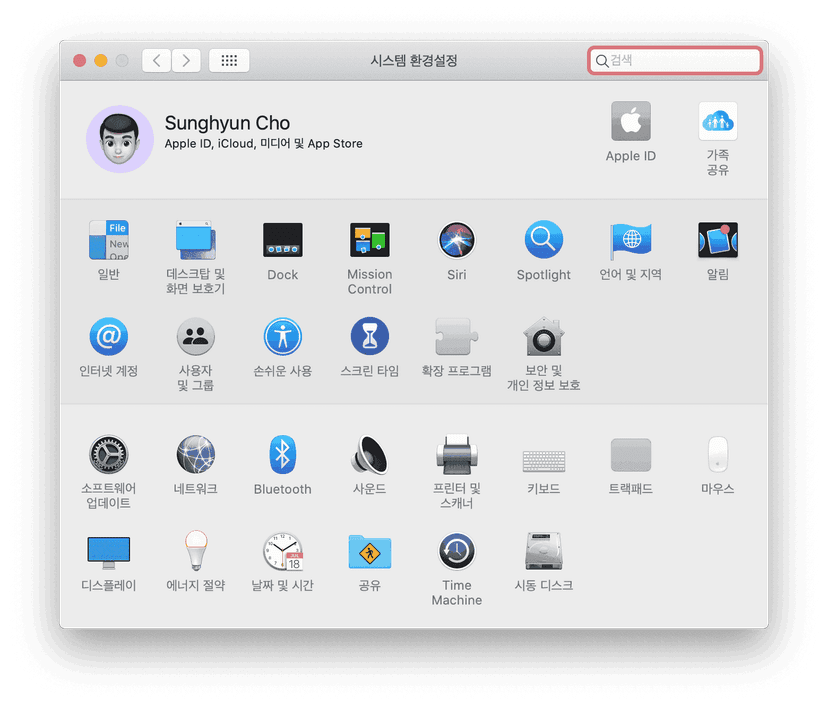
+ 버튼을 누른다.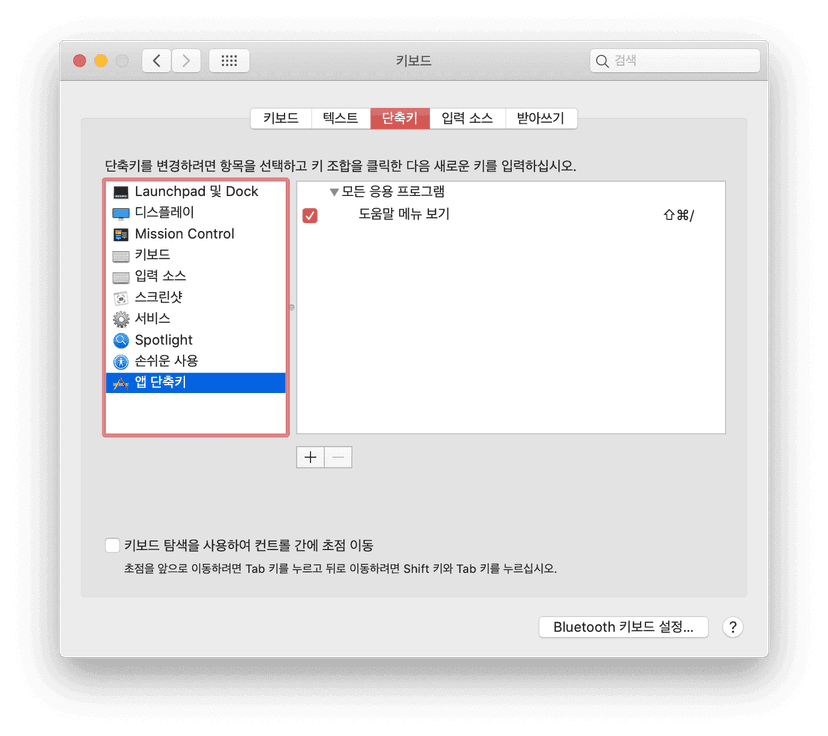
+ 버튼을 누른다.3. 응용 프로그램으로 모든 응용 프로그램을 선택하고, 메뉴 제목에 화면 잠금을 입력한다. 그 다음 키보드 단축키에 ⌘ Command+L을 입력한다. 만약 다른 단축키로 화면을 잠그고 싶다면 그 단축키를 입력하면 된다. 마지막으로 추가 버튼을 누른다.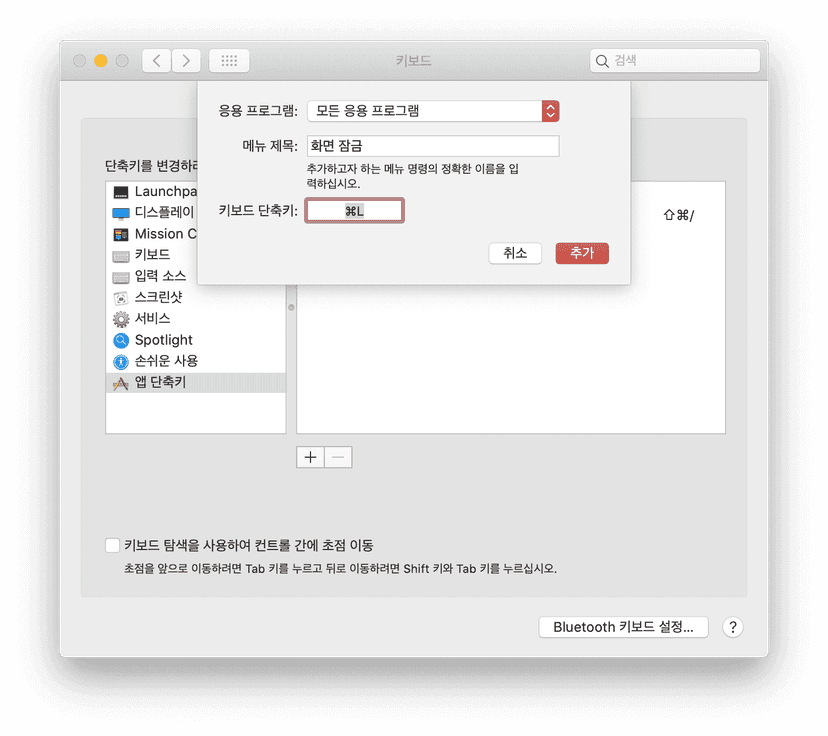
대부분 정상 동작하지만 앱 기본 단축키에 ⌘ Command+L이 포함되어 있는 경우 일시적으로 동작이 되지 않을 수 있다. 대표적으로 시스템 환경설정은 ⌘ Command+L을 환경 설정 전체 메뉴로 돌아가는 단축키로 사용한다. 전체 메뉴에서 다시 ⌘ Command+L 을 누르면 화면이 잠긴다. 이 외에는 아직 ⌘ Command+L 단축키가 동작하지 않는 경우는 보지 못했다.
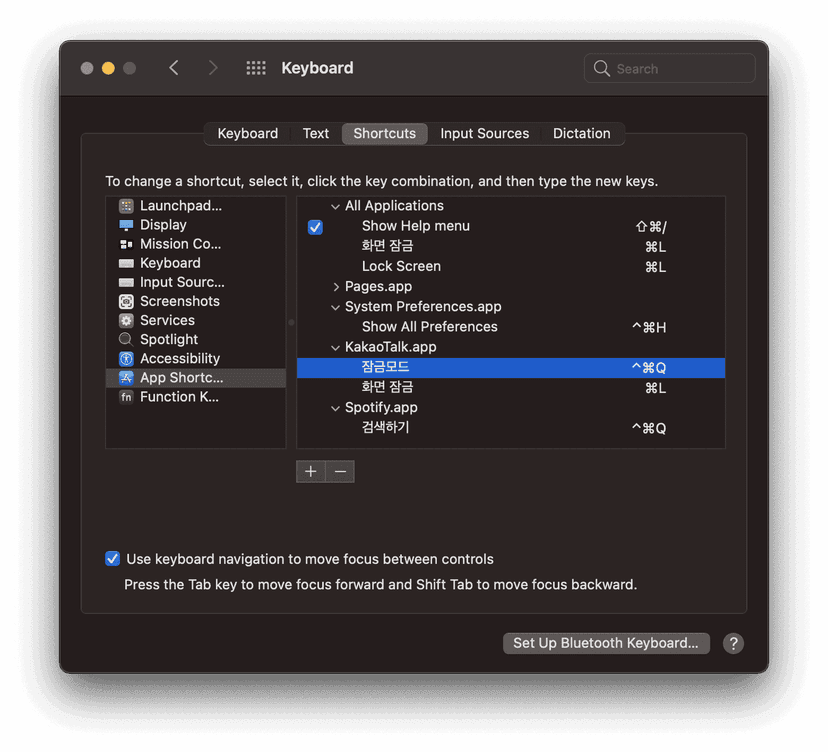
macOS Big Sur부터 Touch ID 버튼을 가볍게 클릭하면 화면을 잠글 수 있다.
Index