Shortcuts
Path for Karabiner Advanced Settings
~/.config/karabiner/assets/complex_modifications/keyboard.jsonjson
// `keyboard.json`{ "title": "Caps Lock → Hyper Key (control+shift+option) (F16 if alone)", "rules": [ { "description": "Caps Lock → Hyper Key (control+shift+option) (F16 if alone)", "manipulators": [ { "from": { "key_code": "caps_lock" }, "to": [ { "key_code": "left_shift", "modifiers": ["left_control", "left_option"] } ], "to_if_alone": [ { "key_code": "f16" } ], "type": "basic" } ] } ]}json
// `hyper.json`{ "title": "Hyper Key Combinations", "rules": [ { "description": "Use Hyper + D to F13", "manipulators": [ { "type": "basic", "from": { "key_code": "d", "modifiers": { "mandatory": ["left_shift", "left_control"] } }, "to": [ { "key_code": "f13" } ] } ] }, { "description": "Use Hyper + E to control + up_arrow", "manipulators": [ { "type": "basic", "from": { "key_code": "e", "modifiers": { "mandatory": ["left_shift", "left_control"] } }, "to": [ { "key_code": "up_arrow", "modifiers": ["left_control"] } ] } ] } ]}json
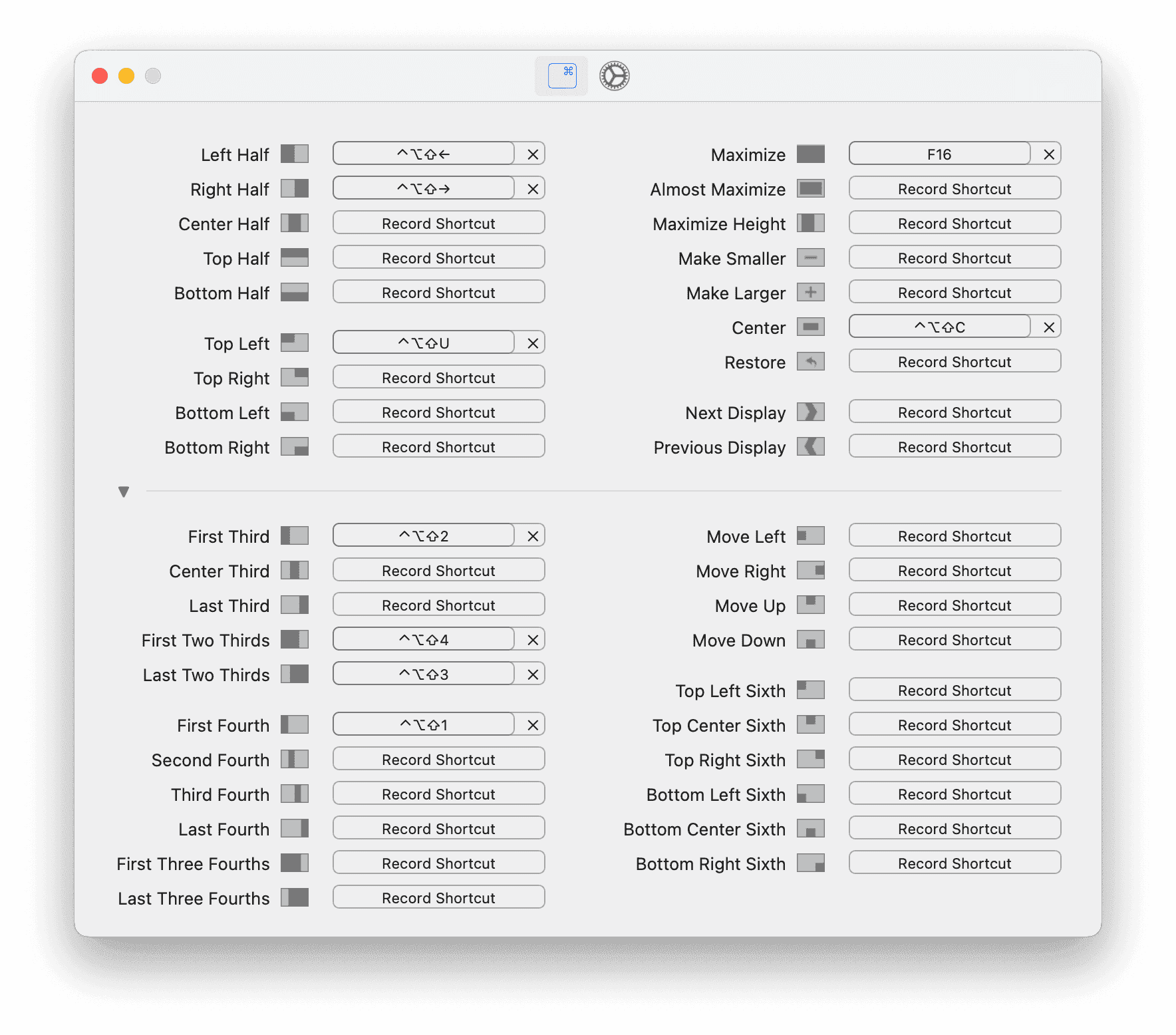
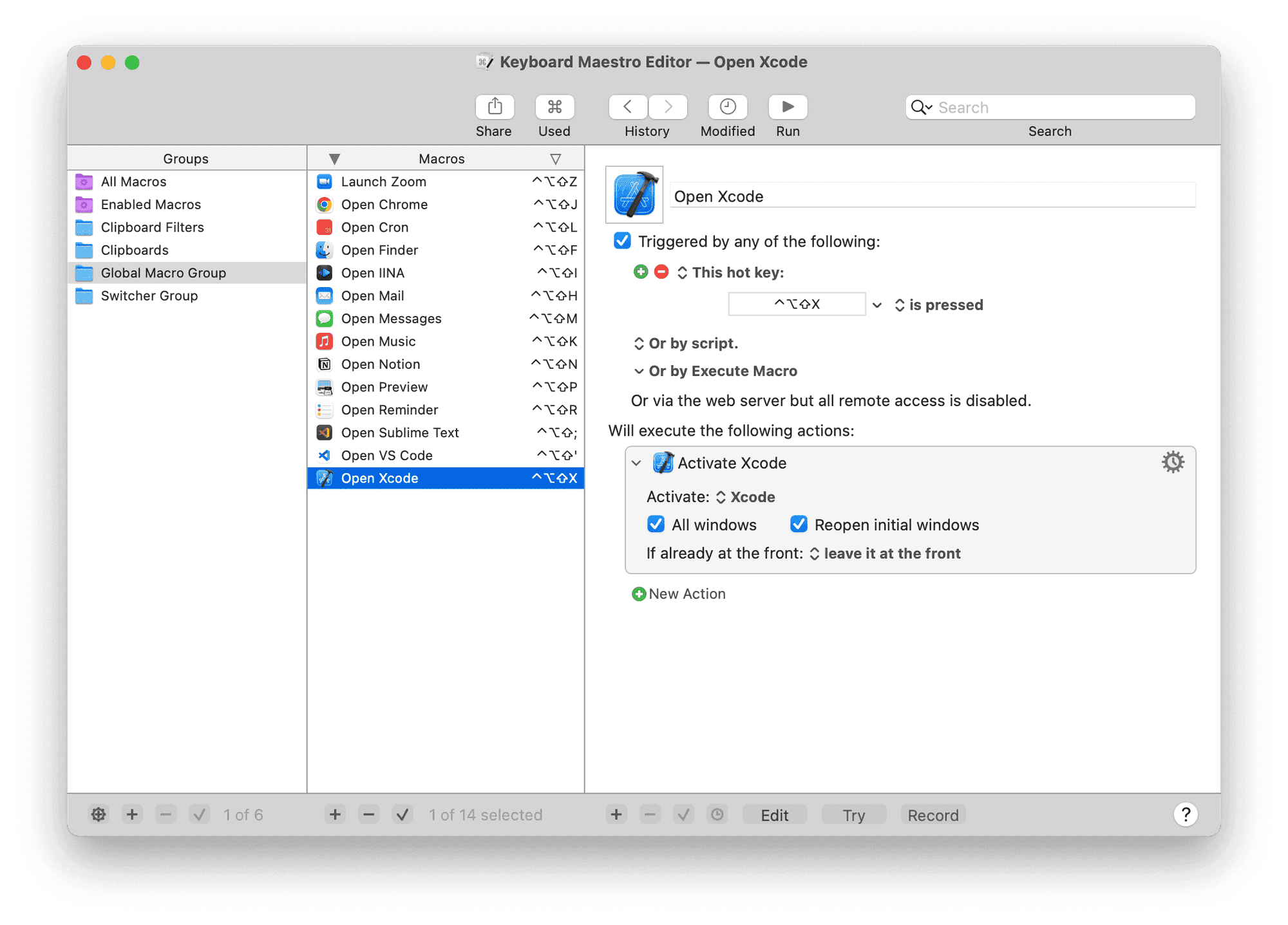
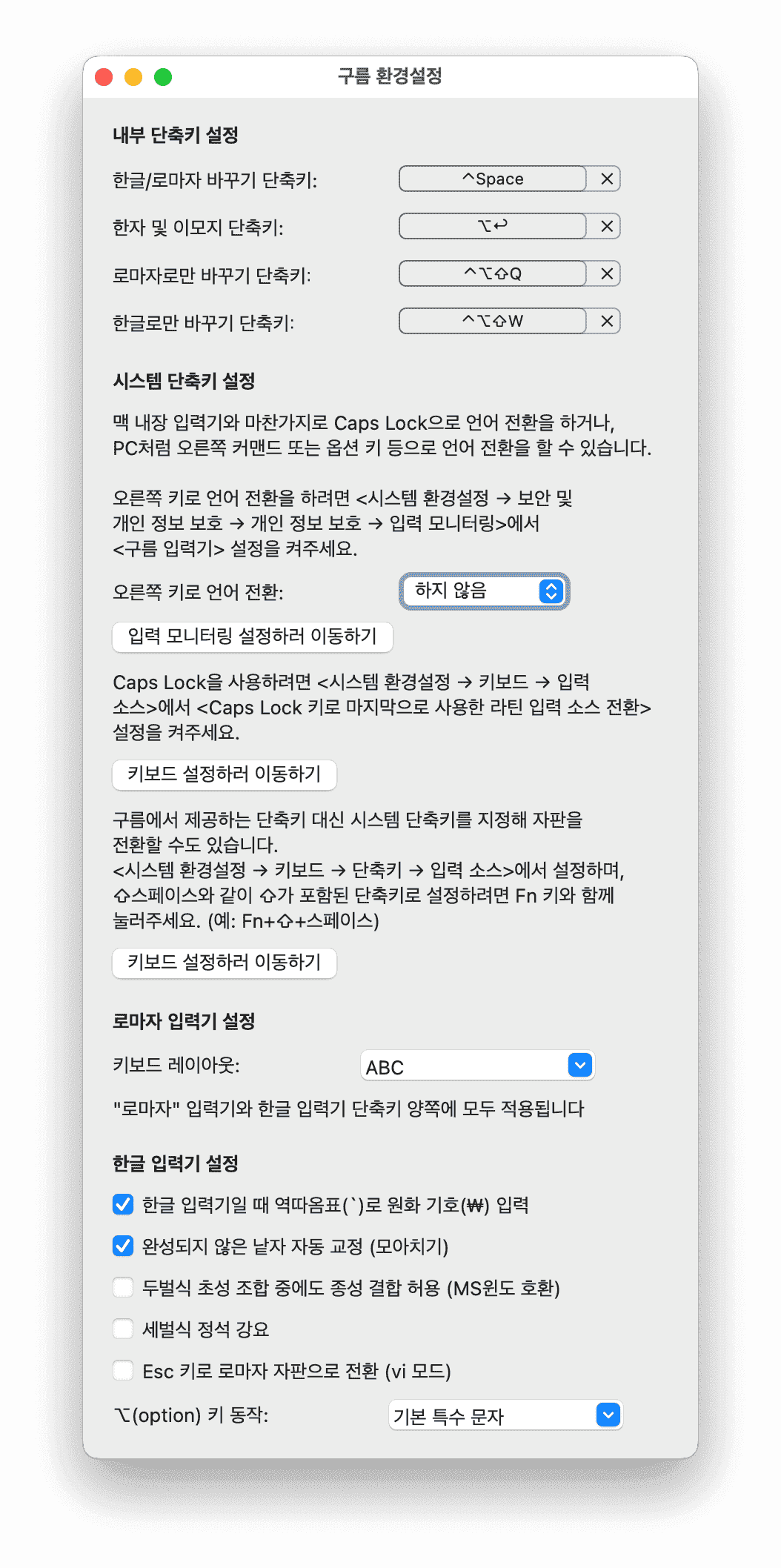
// `language.json`{ "title": "Multilingual Input Methods", "rules": [ { "description": "R Command to Gureum Han2", "manipulators": [ { "type": "basic", "from": { "key_code": "right_command", "modifiers": { "optional": ["any"] } }, "to": [ { "key_code": "right_command", "lazy": true } ], "to_if_alone": [ { "select_input_source": { "input_source_id": "org.youknowone.inputmethod.Gureum.han2" } } ] } ] }, { "description": "L Command to Gureum Roman", "manipulators": [ { "type": "basic", "from": { "key_code": "left_command", "modifiers": { "optional": ["any"] } }, "to": [ { "key_code": "left_command", "lazy": true } ], "to_if_alone": [ { "select_input_source": { "input_source_id": "org.youknowone.inputmethod.Gureum.system" } } ] } ] } ]}Then I configured a bunch of shortcuts to fly through my Mac. Remember ⌃⌥⇧ is the so-called Hyper Key that I made, which uses the Caps Lock key or 한/영 키 (Korean-English Key). That is, because, I never use the Caps Lock key (I use shift) and I click the right command key to type Korean and click the left command key to type English, inspired by the Japanese Apple keyboard's Kana (かな) and English Key (英数) Link.